Overview
This tutorial explains how to deploy an existing Astro project to Cloudflare Workers. It covers project configuration, local validation and build, GitHub, Cloudflare configuration, automatic deployment, production verification, and basic troubleshooting.
By the end of this tutorial, the Astro project will be deployed as a static production website.
Related Project: AviosIT Personal Website
Prerequisites
Before starting this tutorial, make sure you have:
- An existing Astro project
Node.jsandnpminstalled on your computer- A GitHub account
- A Cloudflare account
- The project running successfully in your local development environment
Starting Point
This tutorial starts with an existing Astro project that is already configured to run in a local development environment. The project used in this tutorial is the AviosIT Personal Website sample repository. It provides a representative Astro project for demonstration and educational purposes.
The production source code of the AviosIT Personal Website is not publicly available due to privacy and security considerations. The sample repository is therefore used as the starting point for this tutorial.
Configuration
Before deployment, configure the Astro project to generate a static website. Astro is responsible for generating the production files, while Wrangler is responsible for deploying those generated files to Cloudflare.
The Astro configuration uses static output and defines the production site URL, URL trailing-slash behaviour, and sitemap integration:
// @ts-check
import { defineConfig } from "astro/config";

import sitemap from "@astrojs/sitemap";

// https://astro.build/config
export default defineConfig({
  site: "https://example.com",
  output: "static",
  trailingSlash: "never",
  integrations: [sitemap()],
});- site — defines the production website URL used by Astro for generated URLs and sitemap output.
- output — sets Astro to generate a static website.
- trailingSlash — defines how trailing slashes are handled in generated URLs.
- sitemap — generates a sitemap during the production build.
The project also includes a wrangler.jsonc file that defines how the generated static files are deployed to Cloudflare:
{
  "$schema": "./node_modules/wrangler/config-schema.json",
  "name": "aviosit-personal-website-sample",
  "compatibility_date": "2026-09-08",
  "workers_dev": true,
  "preview_urls": true,
  "assets": {
    "directory": "./dist/",
    "html_handling": "drop-trailing-slash",
    "not_found_handling": "404-page"
  }
}- name — defines the Cloudflare Worker project name.
- compatibility_date — specifies the Cloudflare Workers compatibility date used by the project.
- assets.directory — points Wrangler to the static files generated by Astro in the
dist/directory. - html_handling — defines how Cloudflare handles HTML URLs without trailing slashes.
- not_found_handling — defines how unknown URLs are handled by the static asset service.
The assets.directory value points to the dist/ directory generated by Astro. Wrangler deploys the generated output rather than the source directory.
Build
Before pushing the project to GitHub, verify that it passes the project's checks and can be built successfully for production.
First, run the project validation command:
npm run checkThen generate the production build:
npm run buildIf the build completes successfully, Astro generates the static files in the dist/ directory. The local build is used to verify that the project can be built successfully before it is pushed to GitHub. During production deployment, Cloudflare performs the build again in its build environment and generates the production output that is deployed to Cloudflare.
GitHub Repository
Once the project has been validated and built successfully, commit and push the project to its GitHub repository. For this tutorial, the project is available in the AviosIT Personal Website sample repository. GitHub acts as the source of truth for the project and provides the source used by Cloudflare for the production deployment workflow.
Make sure the repository contains the project files required to build and deploy the website, including package.json, package-lock.json, Astro configuration, Wrangler configuration, source files, and public assets. Generated directories, such as node_modules/, dist/, and .astro/, should not be committed to the repository. They are generated during the build process.
Cloudflare Configuration
After the project has been pushed to GitHub, configure Cloudflare to use the repository as the source for the production deployment workflow. Open Workers & Pages, select the project, and open Settings → Builds.
1. Git Repository
Connect the GitHub repository that contains the Astro project.
2. Build Configuration
Configure the following build settings in Cloudflare:
Build command:
npm run check && npm run buildDeploy command:
npx wrangler@4.129.1 deployRoot directory: /
These commands are configured in Cloudflare and are not run manually as part of this step. Cloudflare runs the build command first to validate the project and generate the static output. If the build succeeds, Cloudflare then runs the configured deploy command to publish the generated output to Cloudflare Workers.
3. Branch Control
Set main as the production branch and disable builds for non-production branches. This ensures that only changes pushed to the production branch trigger the production deployment workflow.
4. Wrangler Configuration
The project's wrangler.jsonc file defines the Cloudflare deployment configuration, including the static asset directory and URL handling behaviour. The configuration file is stored in the GitHub repository so the deployment settings remain part of the project source and are used by Wrangler during deployment.
Deployment
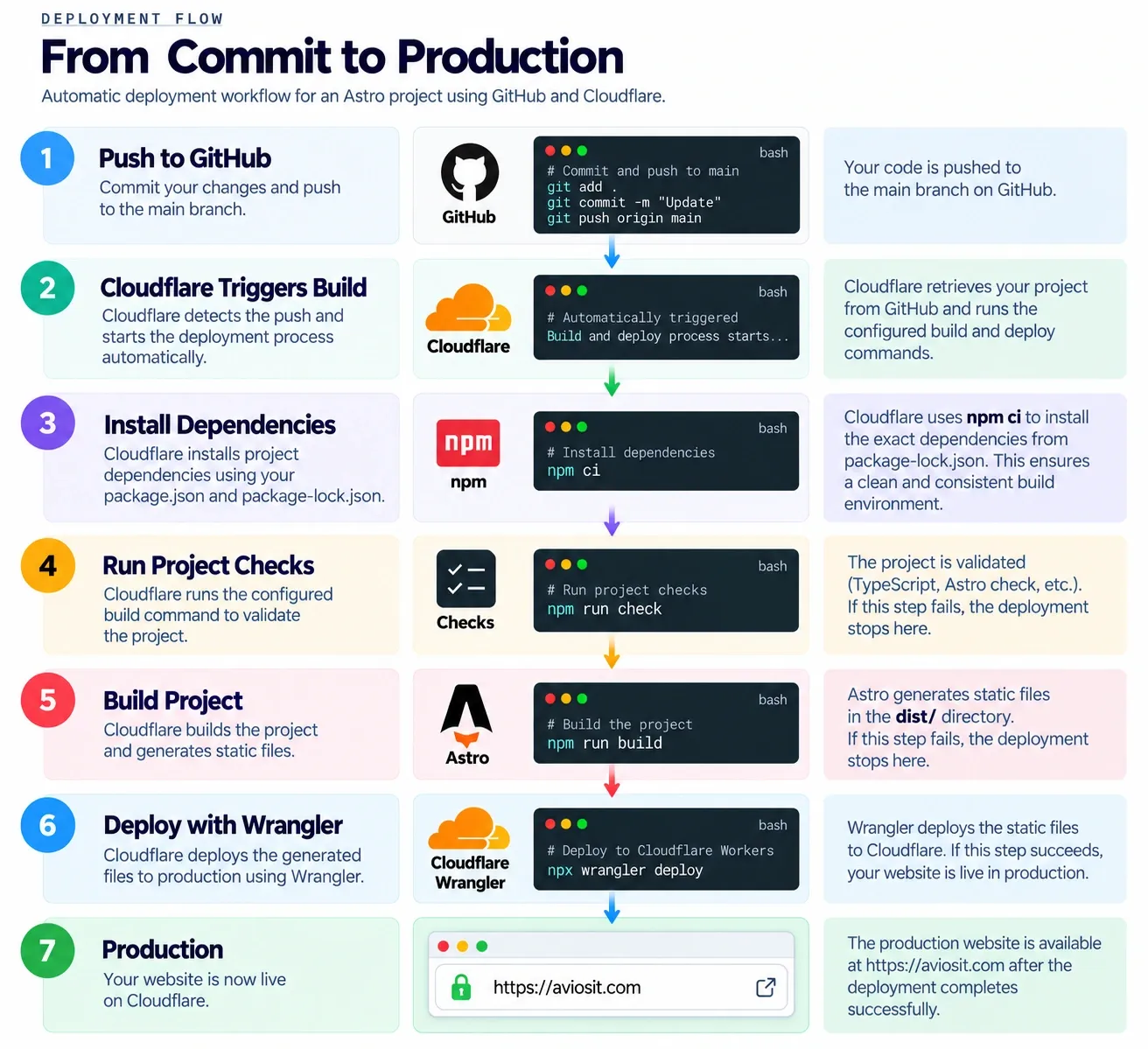
Once the Cloudflare configuration is ready, production deployment is triggered by pushing a commit to the main branch.
git push origin mainCloudflare automatically installs the project dependencies using npm ci, runs the configured checks and build, generates the static files in dist/, and deploys them using Wrangler. The production website is available at the deployment URL provided by Cloudflare after the deployment completes successfully.
Verification
After the deployment completes, open the production website and verify that it works correctly.
- Open the production URL.
- Check the homepage and main sections.
- Verify that navigation links work.
- Open internal pages and confirm that they load correctly.
- Check that images and stylesheets load correctly.
- Open an unknown URL and verify that the custom 404 page is returned.
A successful verification confirms that the Astro static output has been deployed and is being served correctly in production.
Common Issues
When a production deployment fails, identify the first failing stage before investigating later stages. The deployment workflow runs through a sequence of stages, so an earlier failure can prevent later stages from running successfully.
1. Install Failure
Cloudflare runs npm ci automatically. If installation fails, check package.json, package-lock.json, dependencies, and Node.js compatibility.
2. Check Failure
Reproduce the check locally:
npm run checkCheck TypeScript, Astro, import, content, and project data errors.
3. Build Failure
If the check succeeds but the build fails, reproduce the build locally:
npm run buildCheck imports, missing files, images, configuration, content, and build errors.
4. Deploy Failure
If the check and build stages succeed but deployment fails, inspect wrangler.jsonc, Cloudflare configuration, the static asset directory, and the configured Wrangler version.
Conclusion
Deploying an existing Astro project to Cloudflare Workers involves preparing the project, validating the local build, pushing the source to GitHub, configuring Cloudflare, and using an automated production deployment workflow.
The resulting workflow separates the responsibilities of Astro, GitHub, Cloudflare, and Wrangler while keeping GitHub as the source of truth for the project.
The key idea is to keep the source code, build process, and deployment configuration connected through a predictable workflow. This makes it easier to validate changes locally and move them into production through the same defined deployment process.
The same workflow can also be adapted to other static websites, with the build and deployment configuration adjusted to the project's requirements.