Why uv?
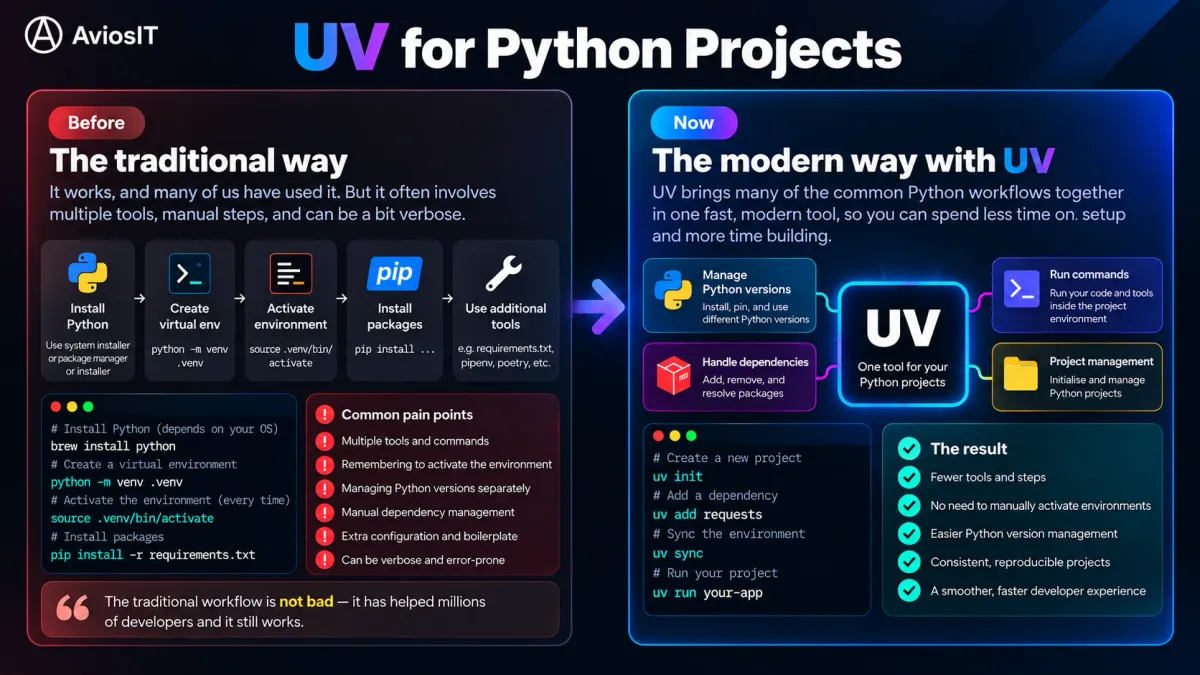
If you have worked with Python before, you have probably used tools such as venv and pip. They work well, but a Python project can involve several separate steps: installing Python, creating a virtual environment, installing dependencies, managing versions, and running the project.
uv brings many of these workflows together in a single tool. Instead of treating Python versions, environments, dependencies, and project commands as separate concerns, uv provides a unified workflow for managing them.
The traditional Python workflow is still perfectly valid. uv simply provides a more integrated and modern approach.
What is uv?
uv is a fast, modern Python package and project manager developed by Astral. It can help us manage:
- Python versions
- Python projects
- Dependencies
- Virtual environments
- Lockfiles
- Project commands
A useful way to think about uv is:
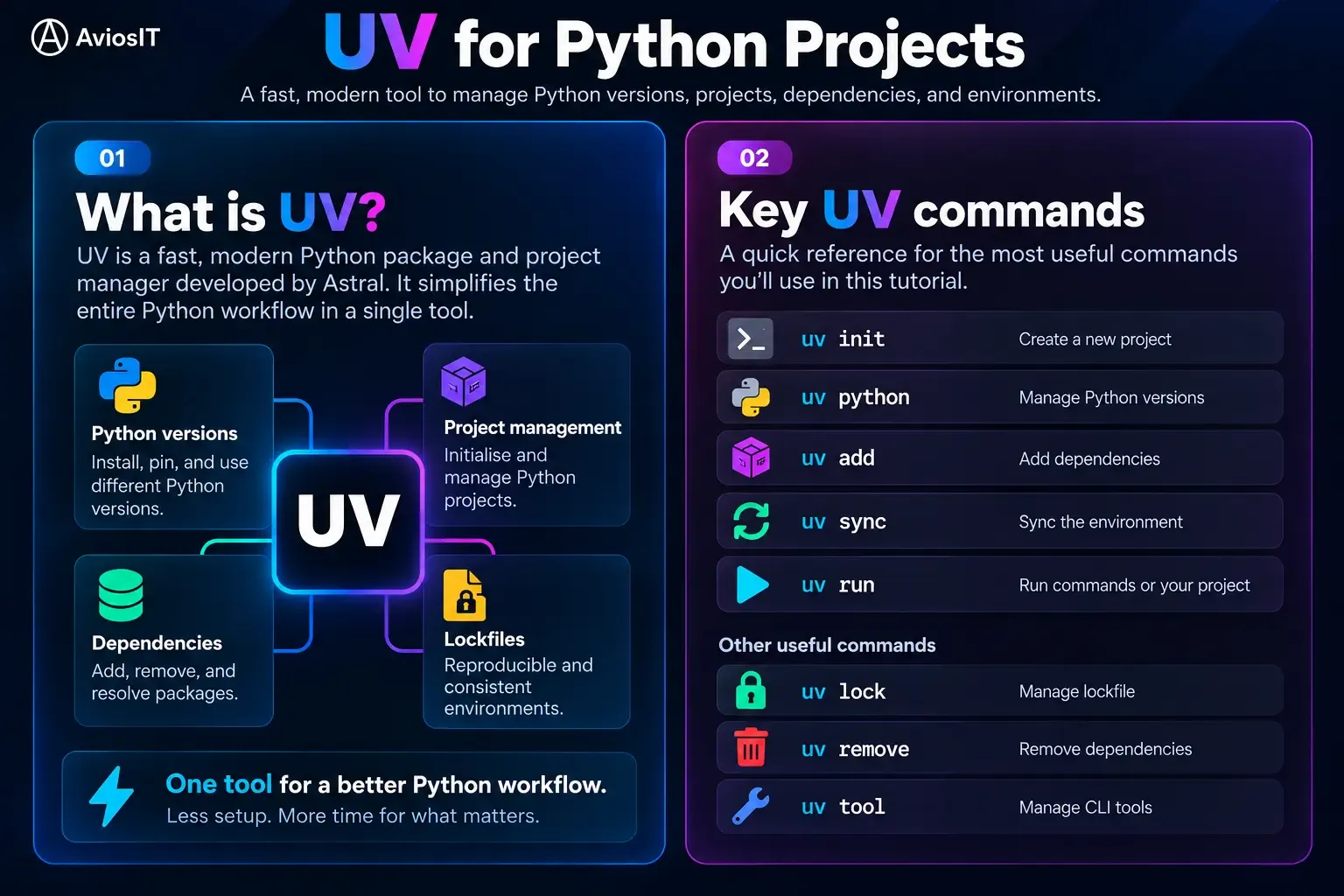
For this tutorial, we will use uv to create a project, select a Python version, add a dependency, run the project, and recreate the environment from an existing project.
uv Workflow
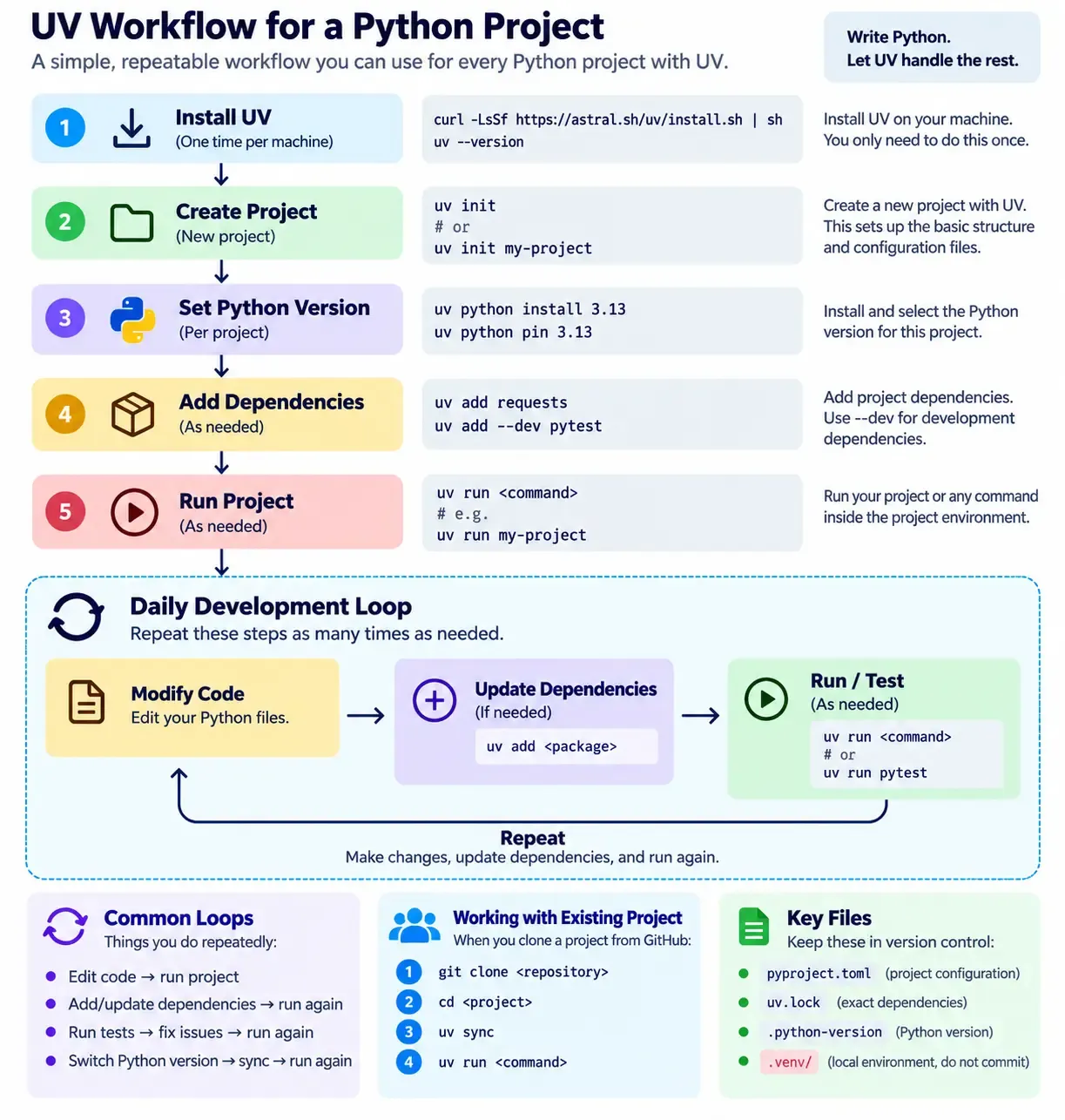
A typical uv workflow starts with project setup and then becomes a simple development loop: modify the code, update dependencies when needed, run or test the project, and repeat.
Install uv
The official installer provides a simple way to install uv on macOS and Linux.
curl -LsSf https://astral.sh/uv/install.sh | shAfter installation, reload your shell configuration.
source ~/.zshrcThen verify the installation.
command -v uv
uv --version
If uv is installed correctly, the terminal should display the location of the executable and the installed version.
Create Project
Let's create a new project for this tutorial.
First, create a directory and move into it.
mkdir aviosit-tutorials
cd aviosit-tutorials
Then initialise the project.
uv initA typical project will contain files such as:
aviosit-tutorials/
  ├── .python-version
  ├── README.md
  ├── pyproject.toml
  └── src/
      └── aviosit_tutorials/
          └── __init__.py
The important file here is pyproject.toml. It contains the project's metadata, Python version requirements, dependencies, and other configuration. uv also uses .python-version to record the Python version selected for the project.
Manage Python
One useful feature of uv is that it can manage Python installations.
Let's install Python 3.13.
uv python install 3.13Then we can select Python 3.13 for the current project.
uv python pin 3.13This creates or updates the .python-version file.
3.13The basic workflow is depicted below.
  .python-version
        ↓
selects Python 3.13
        ↓
      uv sync
        ↓
      .venv
When the project environment needs to be created or updated, uv can use this configuration to select the appropriate Python interpreter.
You can also inspect the Python versions managed by uv.
uv python listManage Dependencies
Now let's add a dependency.
We'll use requests as a simple example.
uv add requestsuv adds the dependency to the project configuration and resolves the dependency tree.
The direct dependency is recorded in pyproject.toml.
[project]
dependencies = [
    "requests",
]
uv also creates or updates uv.lock.
The difference is important.
pyproject.toml
    ↓
What the project requires

uv.lock
    ↓
The resolved dependency versions
For example, requests has its own dependencies. uv resolves those transitive dependencies and records the complete dependency graph in the lockfile. uv also synchronises the project environment after updating the dependency configuration.
You can inspect the project configuration.
cat pyproject.tomlAnd inspect the project files.
ls -laIf a project needs an exact version, we can specify it directly.
uv add "requests==2.34.2"This records the exact version in the project configuration.
Other common version specifiers include the following.
==   exact version
>=   minimum version
>    greater than
<=   maximum version
<    less than
For development-only dependencies, uv supports dependency groups.
uv add --dev pytestThis places the dependency in the dev dependency group rather than the main runtime dependencies.
Run Project
Our project now has its Python configuration and dependencies.
uv can run commands inside the project's managed environment.
uv run aviosit-tutorialsThe command above uses the project's environment rather than requiring us to manually activate a virtual environment first.
For example, our pyproject.toml contains the following.
[project.scripts]
aviosit-tutorials = "aviosit_tutorials:main"
This connects the command aviosit-tutorials to aviosit_tutorials:main.
So when we run the following.
uv run aviosit-tutorialsThe flow for this command is depicted below.
uv run
  ↓
project.scripts
  ↓
aviosit-tutorials
  ↓
aviosit_tutorials:main()
This is useful when a project has official commands that should be easy to run.
Existing Project
Now let's look at a common real-world situation.
Imagine you've cloned an existing Python project from GitHub.
git clone https://github.com/mj-muhajirin/aviosit-tutorials
cd aviosit-tutorials
The repository contains the project configuration and lockfile, but your local machine does not have the project's virtual environment.
You don't need to manually recreate everything. Instead, run the following.
uv syncuv uses the project configuration and lockfile to create or update the project environment.
After that, you can run the project.
uv run aviosit-tutorialsThe workflow becomes like the following.
  GitHub repository
        ↓
     git clone
        ↓
      uv sync
        ↓
      .venv
        ↓
      uv run
This is one of the main benefits of keeping the project configuration and lockfile in version control. The .venv directory itself should normally not be committed to Git.
Conclusion
uv brings several common Python project workflows together in one tool.
In this tutorial, we've used uv to manage Python versions, create a project, manage dependencies, run commands, and recreate an environment from an existing project.
The key project files are pyproject.toml, uv.lock, and .python-version, while .venv/ contains the local environment and should not be committed to Git.
Tutorial Video
Watch the accompanying video to see the complete workflow in practice, from installing uv to running a project and recreating its environment.