
Overview
Hugging Face Hub provides access to pretrained machine learning models that can be downloaded and used in Python applications. Instead of downloading model files every time an application starts, we can store them in a local directory and load them from there.
In this tutorial, we use BAAI/bge-m3, a pretrained multilingual embedding model. The goal is to download its files, inspect the local model directory, and load the tokenizer and model using Hugging Face Transformers.
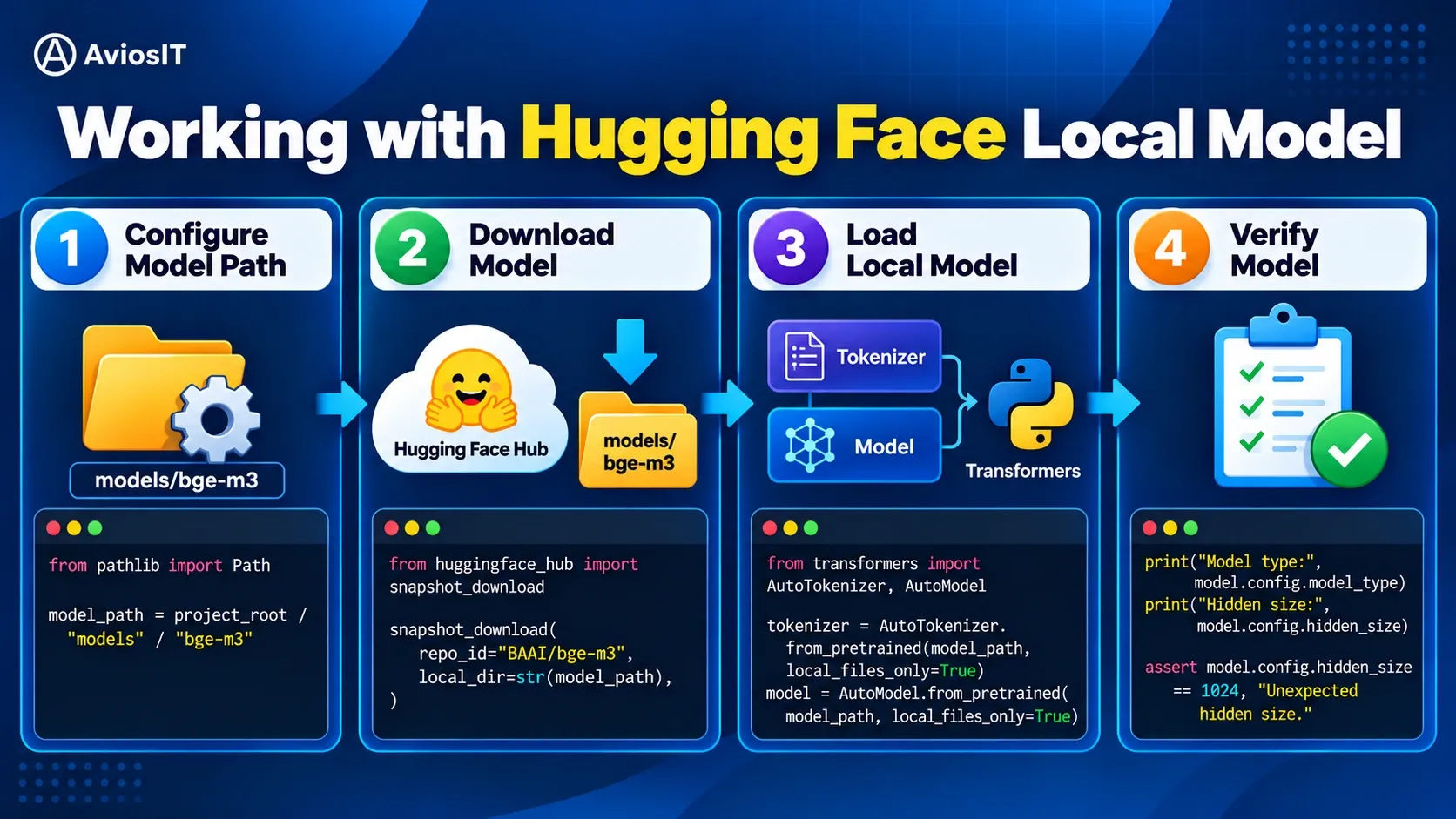
The tutorial covers the following workflow:
- Configure the local model directory.
- Download the pretrained model from Hugging Face Hub.
- Load the tokenizer and model from local files.
- Inspect the model configuration and verify that it loaded correctly.
This tutorial focuses on model acquisition and loading. Generating text embeddings is a separate step covered in the next tutorial.
Configure Model Path
Before downloading the model, define where its files will be stored. Keeping model files in a dedicated directory separates downloaded artefacts from the application's source code.
For this tutorial, the local model directory is models/bge-m3 at the repository root. The directory can contain the model configuration, tokenizer files, model weights, and other files provided by the model repository.
from pathlib import Path

project_root = Path.cwd()

while not (project_root / "pyproject.toml").is_file():
    if project_root.parent == project_root:
        raise FileNotFoundError("Could not locate pyproject.toml")

    project_root = project_root.parent

model_path = project_root / "models" / "bge-m3"

print(f"Project root: {project_root}")
print(f"Model path: {model_path}")
The example locates the project root by searching forpyproject.toml, then builds the model path relative to that root. This avoids relying on the notebook's current working directory being the repository root.
The project environment must also include the dependencies required for downloading and loading the model. If the dependencies are already declared in the project's pyproject.toml, synchronise the environment with uv sync before running the notebook.
uv syncRelated Tutorial: Using uv for Python Projects
Download Model
Hugging Face Hub hosts the model repository and its associated files. The huggingface_hub library providessnapshot_download, which downloads a repository snapshot into a local directory.
We use BAAI/bge-m3 as the model identifier and specify the local directory in which its files should be stored.
from huggingface_hub import snapshot_download

snapshot_download(
    repo_id="BAAI/bge-m3",
    local_dir=str(model_path),
)
After the download completes, inspect the directory to confirm that files are present.
for path in sorted(model_path.iterdir()):
    print(path.name)
The exact files depend on the model repository and its current revision. Keep the downloaded files separate from Git-tracked source code, particularly when model weights are large.
Downloading the model is a preparation step. It does not yet generate embeddings or perform semantic search.
Load Local Model
Once the model files are available locally, load them usingAutoTokenizer and AutoModel from Transformers. These classes select the appropriate implementations based on the model configuration.
Passing local_files_only=True tells Transformers to use available local files instead of attempting to download missing files from the Hub.
from transformers import AutoModel, AutoTokenizer

tokenizer = AutoTokenizer.from_pretrained(
    str(model_path),
    local_files_only=True,
)

model = AutoModel.from_pretrained(
    str(model_path),
    local_files_only=True,
)

model.eval()
The tokenizer converts input text into token representations that the model can process. The model then produces numerical representations from those inputs. The exact outputs depend on the model architecture and the task.
Calling model.eval() switches the model to evaluation mode. This is appropriate when using a pretrained model for inference rather than training.
At this stage, the model and tokenizer are loaded, but no text has been processed and no embeddings have been generated.
Verify Model
After loading the model, inspect its configuration to verify that the expected model architecture and dimensions are available.
print(f"Model class: {model.__class__.__name__}")
print(f"Tokenizer class: {tokenizer.__class__.__name__}")
print("Model type:", model.config.model_type)
print(f"Hidden size: {model.config.hidden_size}")
assert model.config.hidden_size == 1024, (
    "Unexpected hidden size. Check that model_path points to BAAI/bge-m3."
)
For BAAI/bge-m3, the hidden size is expected to be1024. The model configuration provides this information without requiring an embedding-generation step.
A successful load and an expected configuration are useful initial checks, but they do not establish the quality of the model's embeddings. That requires a separate inference and evaluation step.
When loading models in a production application, also consider the model revision, file integrity, available memory, device placement, dependency compatibility, and whether the application must operate without network access.
Conclusion
This tutorial demonstrated how to prepare and load a pretrained Hugging Face model locally.
The main steps are:
- Define a predictable local model directory.
- Download the model files using
snapshot_download. - Load the tokenizer and model with Transformers.
- Verify the loaded model's configuration.
Local model loading provides a foundation for applications that need more control over model files, deployment environments, and network access. The next step is to use the loaded model to generate text embeddings.
Next Tutorial: Embedding Texts for AI Applications